Editing a Document
Written By:
Last Updated on May 21, 2026
Overview
After creating a document, you can easily edit its steps, titles, and screenshots. The editing tools allow you to refine your guide, add missing details, or update visuals for clarity.
Steps to Edit a Document
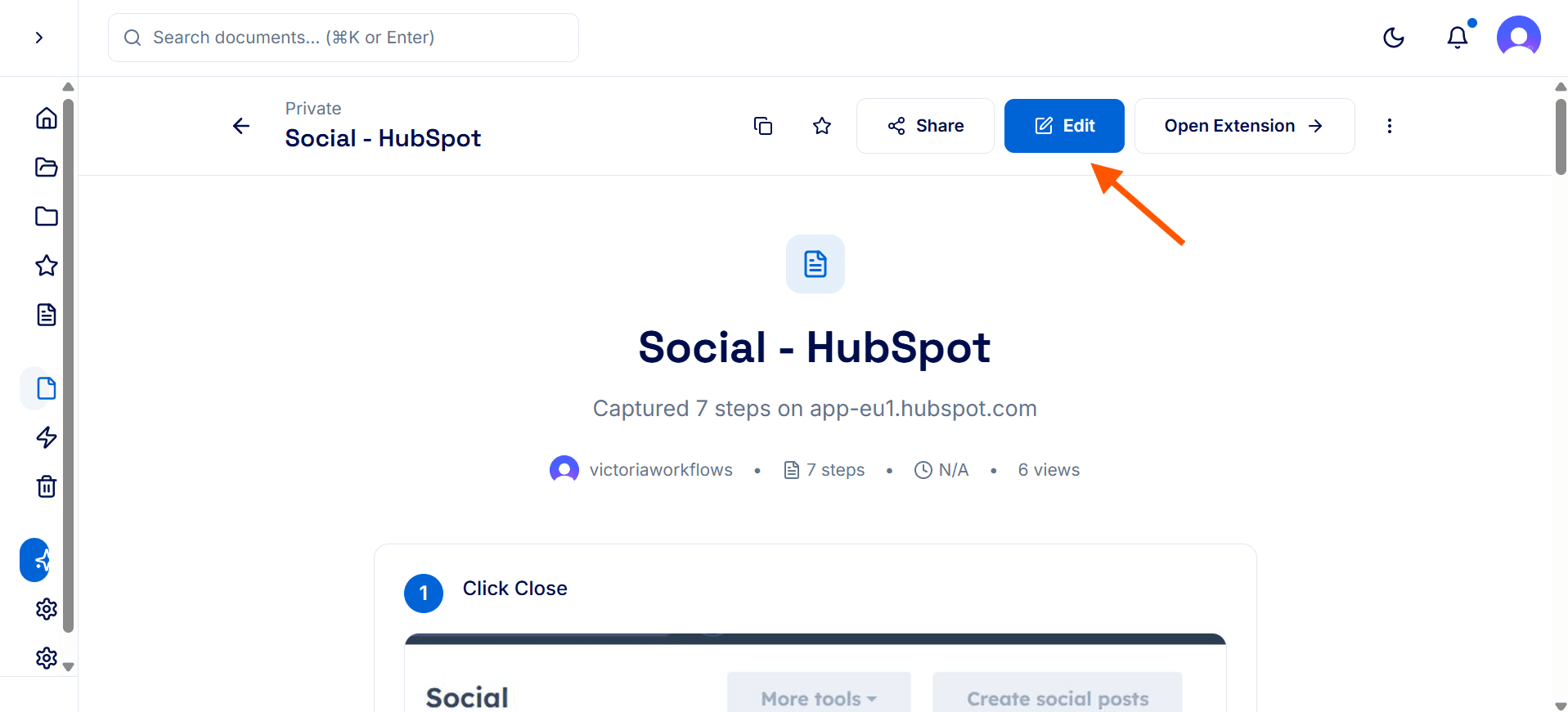
Open the document
Click on the document you want to edit.
At the top menu bar, select Edit.
Edit steps individually
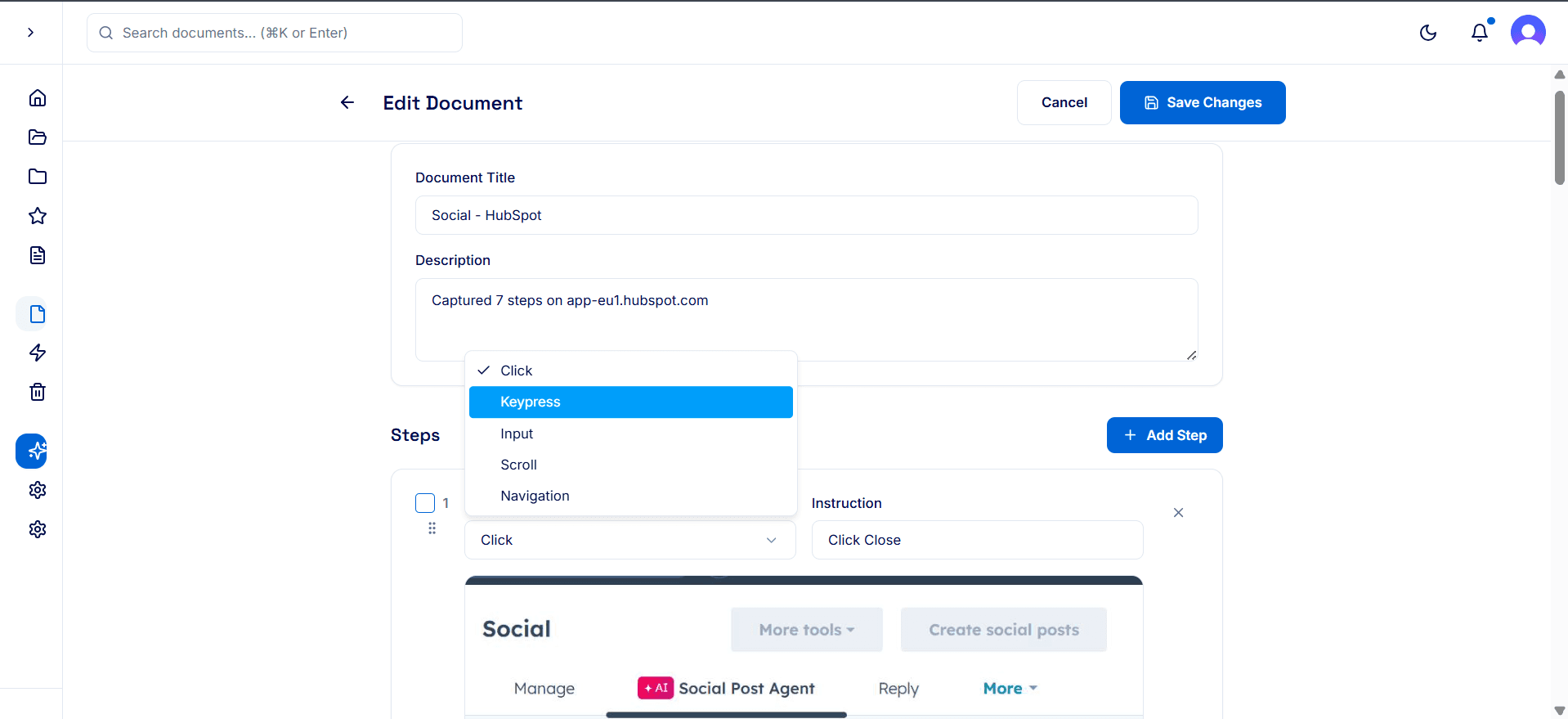
In Edit mode, each step can be modified.
You can:
Edit document title and description
Change the step action
Edit the step instruction
Update or replace the screenshot
Add new steps manually
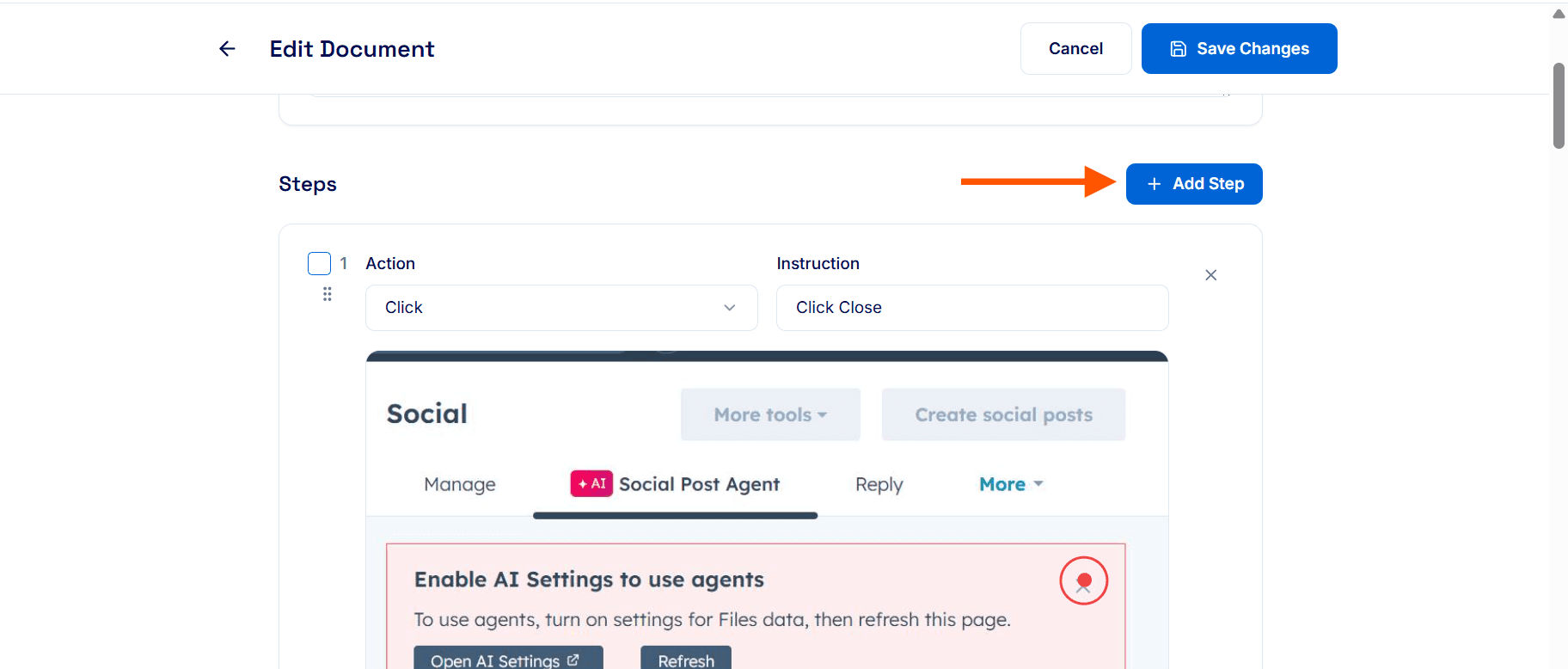
Scroll to the top of your steps.
Click the plus (+ Add Step) button to add a new step.
Scroll to the bottom of the page.
Select the action, enter an instruction, and upload a screenshot as needed.
Edit screenshots with the Screenshot Editor
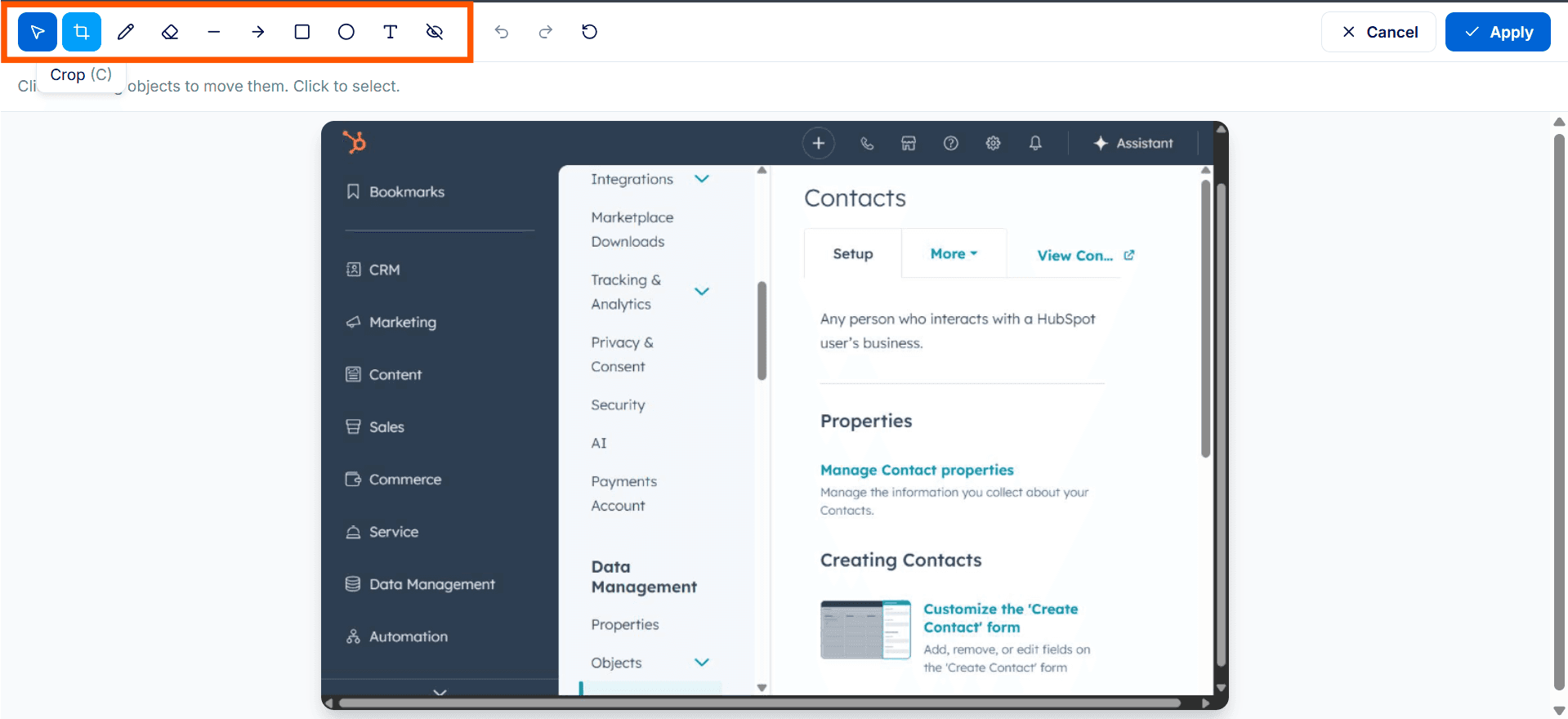
To adjust a screenshot, click the pencil (edit) icon next to the image.
The Screenshot Editor will open, allowing you to crop, highlight, blur, or annotate.
Notes & Tips
Use clear, action-based titles for each step (e.g., “Click ‘Create Board’” instead of “Board creation”).
Keep screenshots consistent — crop out unnecessary areas and blur sensitive data.
Add missing steps manually to ensure the document matches the real workflow.
