How to create your first Document
Written By:
Last Updated on May 21, 2026
Overview
With DocuFast, you can capture your workflow directly in the browser and automatically generate a step-by-step document. This article walks you through creating your very first document.
Prerequisites
DocuFast Chrome extension installed (see: How to install the Chrome extension)
Logged in to your DocuFast account
Steps
Open the DocuFast extension
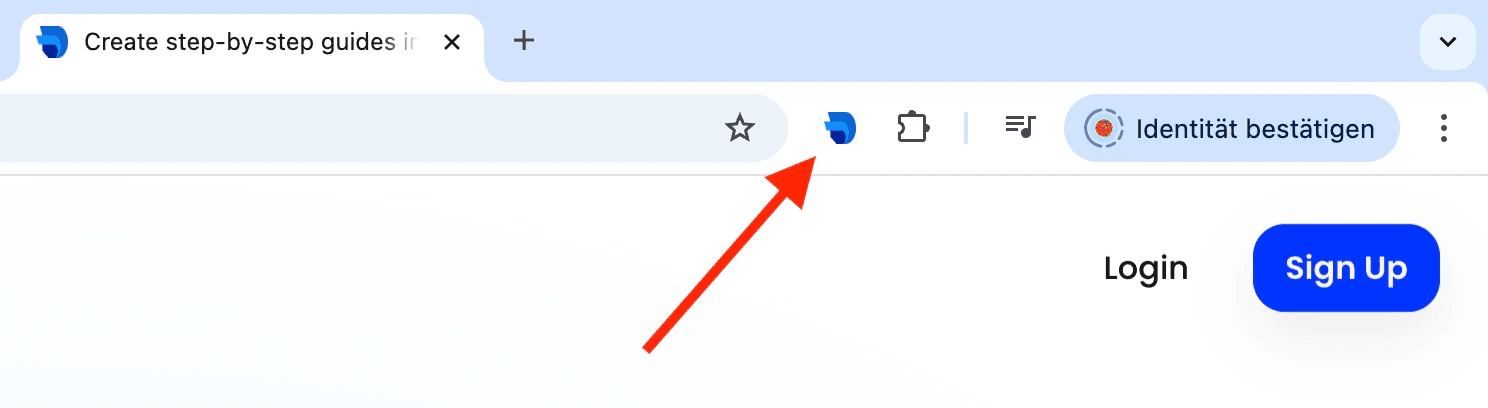
Click on the DocuFast icon in your Chrome toolbar.
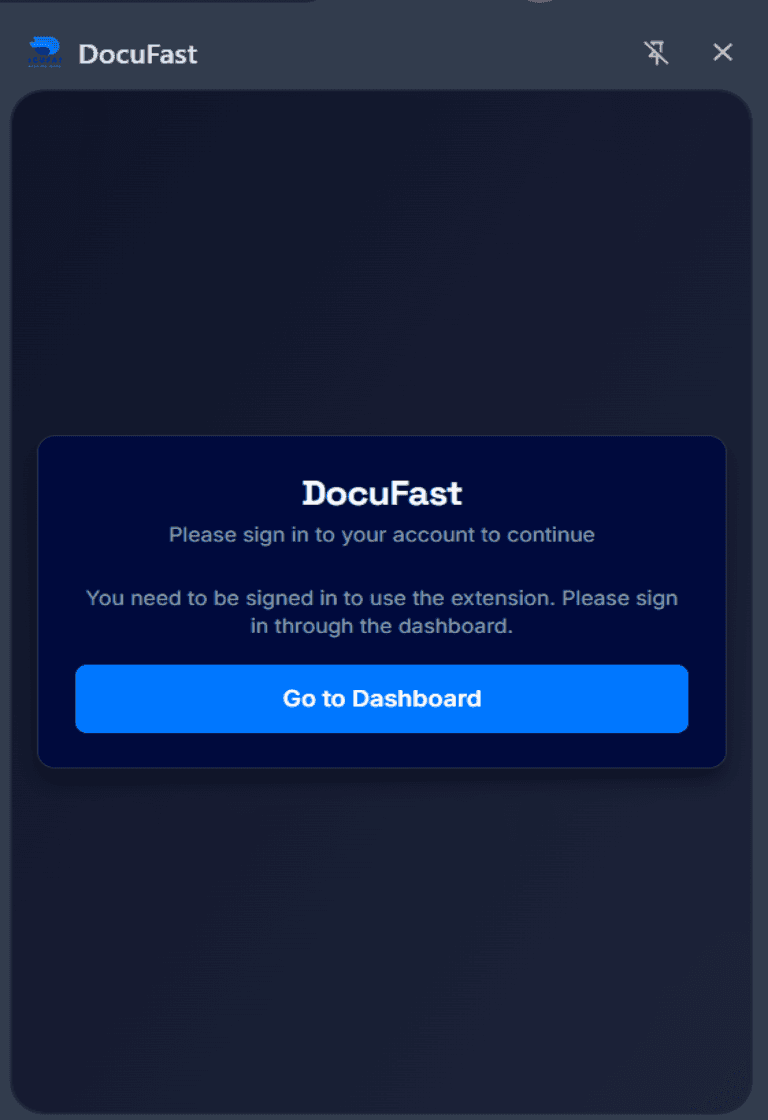
If you are not logged into your Docufast Account, you will have to log in. Click Go to Dashboard and then sign in to Docufast
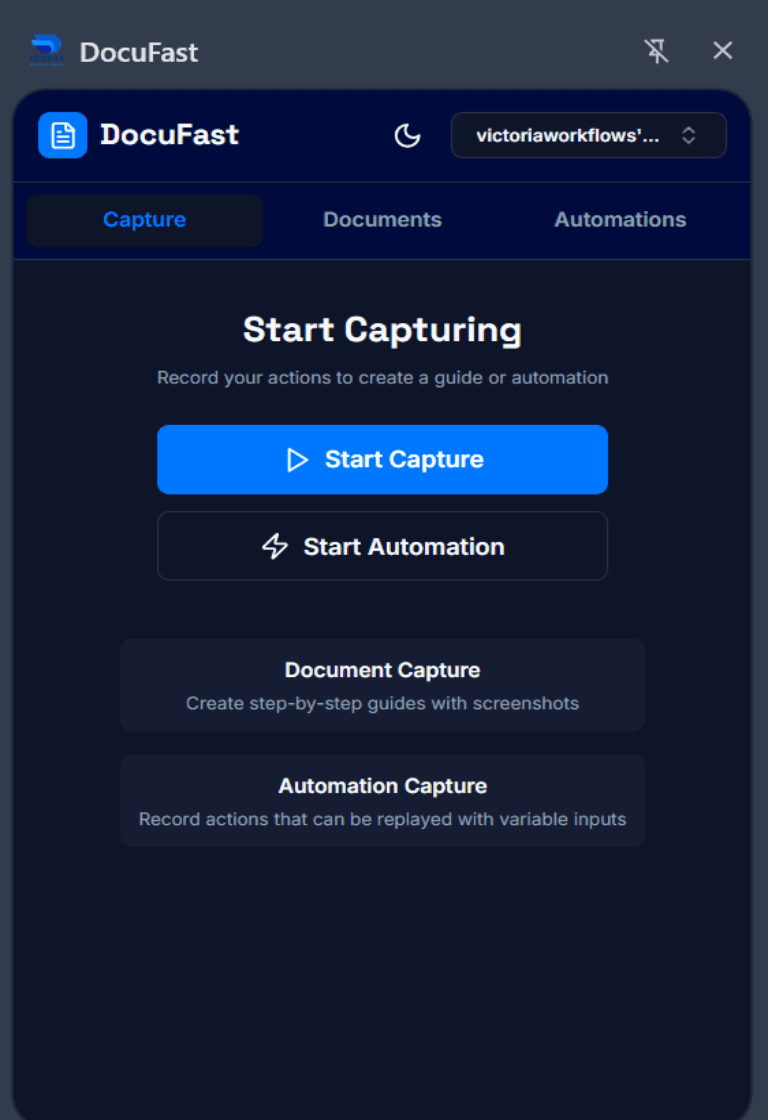
Start a new recording
In the side panel that opens, click Start Capture.
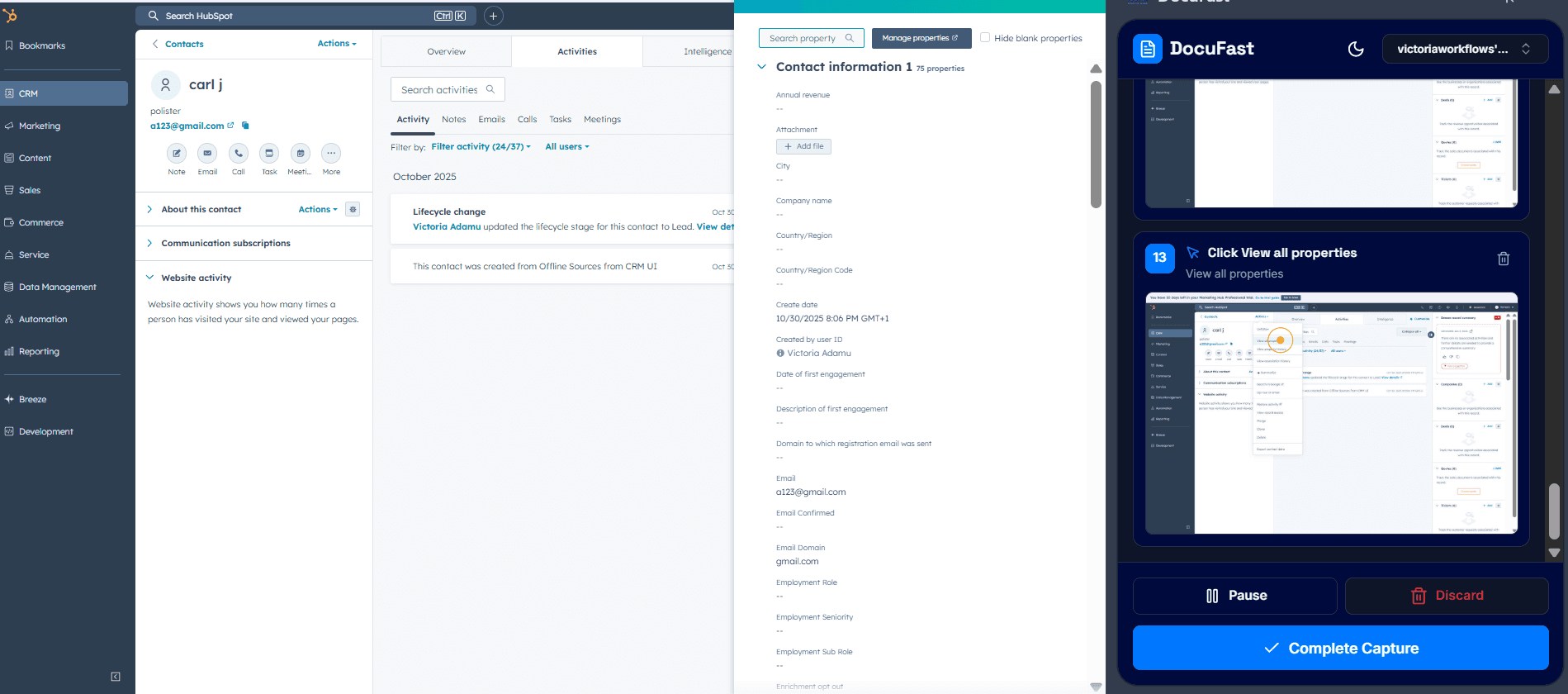
DocuFast will begin capturing your clicks, inputs, and screen actions.
Perform your workflow
Go through the process you want to document (e.g., adding a new contact in your CRM, submitting an expense, creating a Jira issue).
DocuFast automatically takes screenshots and adds step titles for each action.
Stop the recording
When finished, click Complete Capture in the side panel.
DocuFast will process your actions into a structured document.
Review your document
The generated document will open in a new tab or workspace.
You can:
Edit document title and description
Replace or delete screenshots
Edit step instruction
Add step
Reorder steps if needed
Change step action (Click, Keypress, Input, Scroll, Navigation)
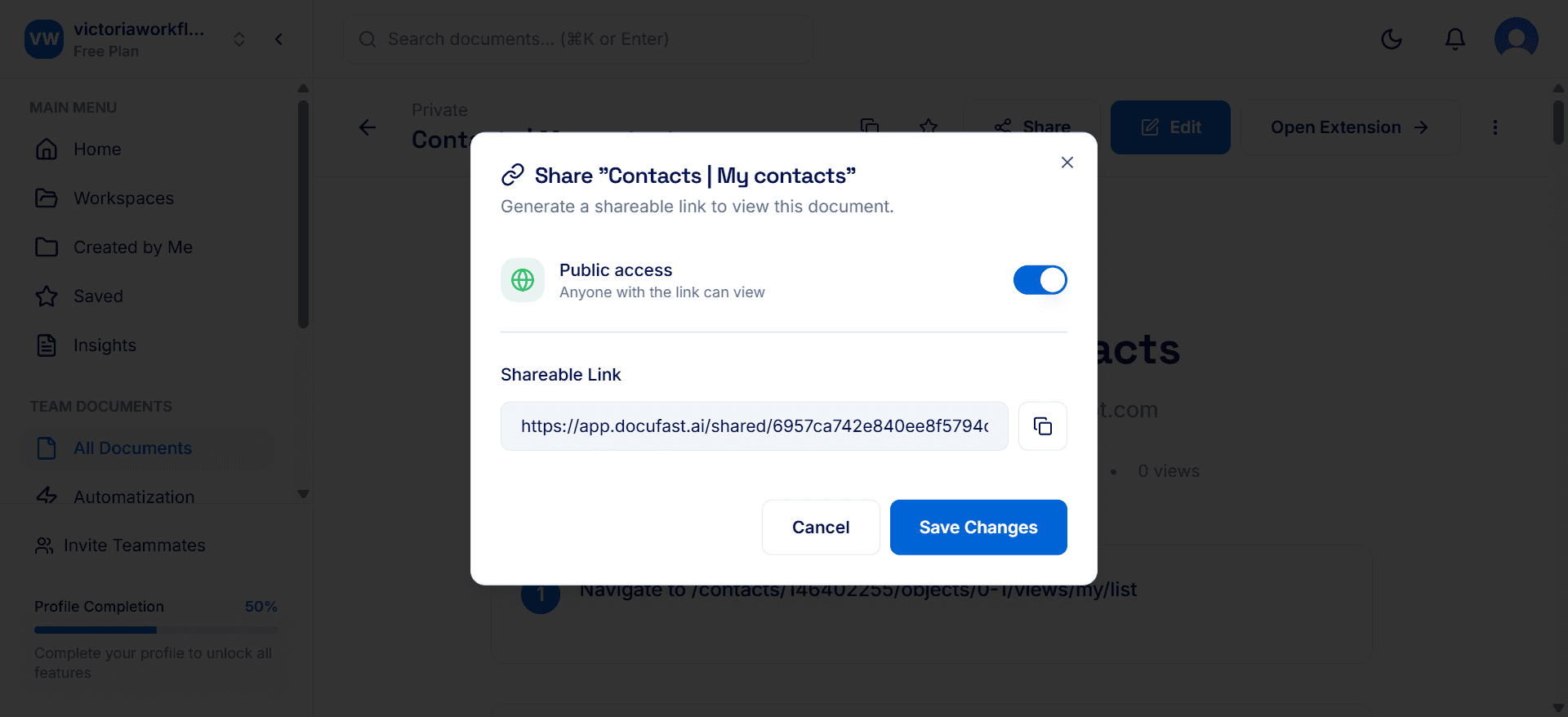
Grant public access and generate a shareable link for your team, or export your document as a PDF
Notes & Tips
Keep your workflow focused: shorter processes make for cleaner guides.
If you need to adjust screenshots (crop, highlight, blur), you can use the built-in Screenshot Editor.
You can always re-record or add additional steps later.
Troubleshooting
No screenshots appear: Ensure you started the recording from the extension and are working within Chrome.
Document doesn’t save: Check your internet connection or log back into your DocuFast account.
Extension not visible: Make sure it is pinned in your Chrome toolbar.
