How to install the Chrome extension
Written By:
Last Updated on May 21, 2026
Overview
The DocuFast Chrome extension helps you capture workflows directly from your browser and turn them into step-by-step guides. This guide will walk you through installing the extension so you can start documenting in seconds.
Prerequisites
A Google Chrome browser (latest version recommended)
A DocuFast account (optional, but required for saving guides to your workspace)
Steps
Open the Chrome Web Store
Go to Chrome Web Store and install the extension
Click “Add to Chrome”
On the extension detail page, click the blue Add to Chrome button.
A small confirmation pop-up will appear.

Confirm installation
In the confirmation pop-up, click Add extension.
Chrome will automatically download and install the extension.
Pin DocuFast to your toolbar (optional, but recommended)
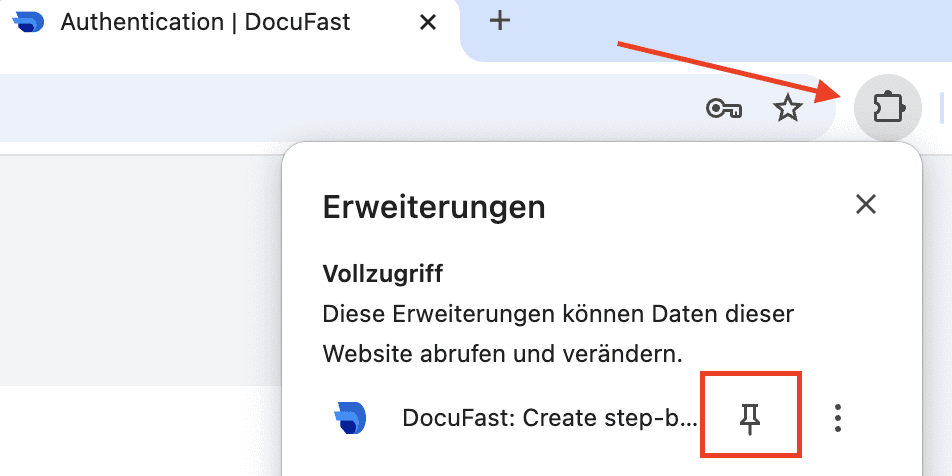
Click on the puzzle-piece icon (Extensions) in the top-right corner of Chrome.
Find DocuFast in the list and click the pin icon to keep it visible in your toolbar.
Notes & Tips
Once installed, you’ll see the DocuFast icon appear in your Chrome toolbar.
You can log in with your DocuFast account by clicking the extension icon.
If you don’t see it, make sure the extension is pinned.
Troubleshooting
DocuFast doesn’t appear in Chrome: Refresh your browser or check under Extensions → Manage Extensions.
Installation blocked: Make sure you’re using Chrome (not another browser) and that you have permission to install extensions.
Still having trouble? Contact DocuFast Support.
