Understanding the DocuFast Dashboard
Written By:
Last Updated on May 21, 2026
Overview
The DocuFast dashboard is designed to help you work efficiently from one place. From here, you can access your documents, manage workspaces, collaborate with your team, and adjust account settings. Understanding how the dashboard is organized will help you navigate DocuFast faster and make the most of its features.
Dashboard Layout
Home
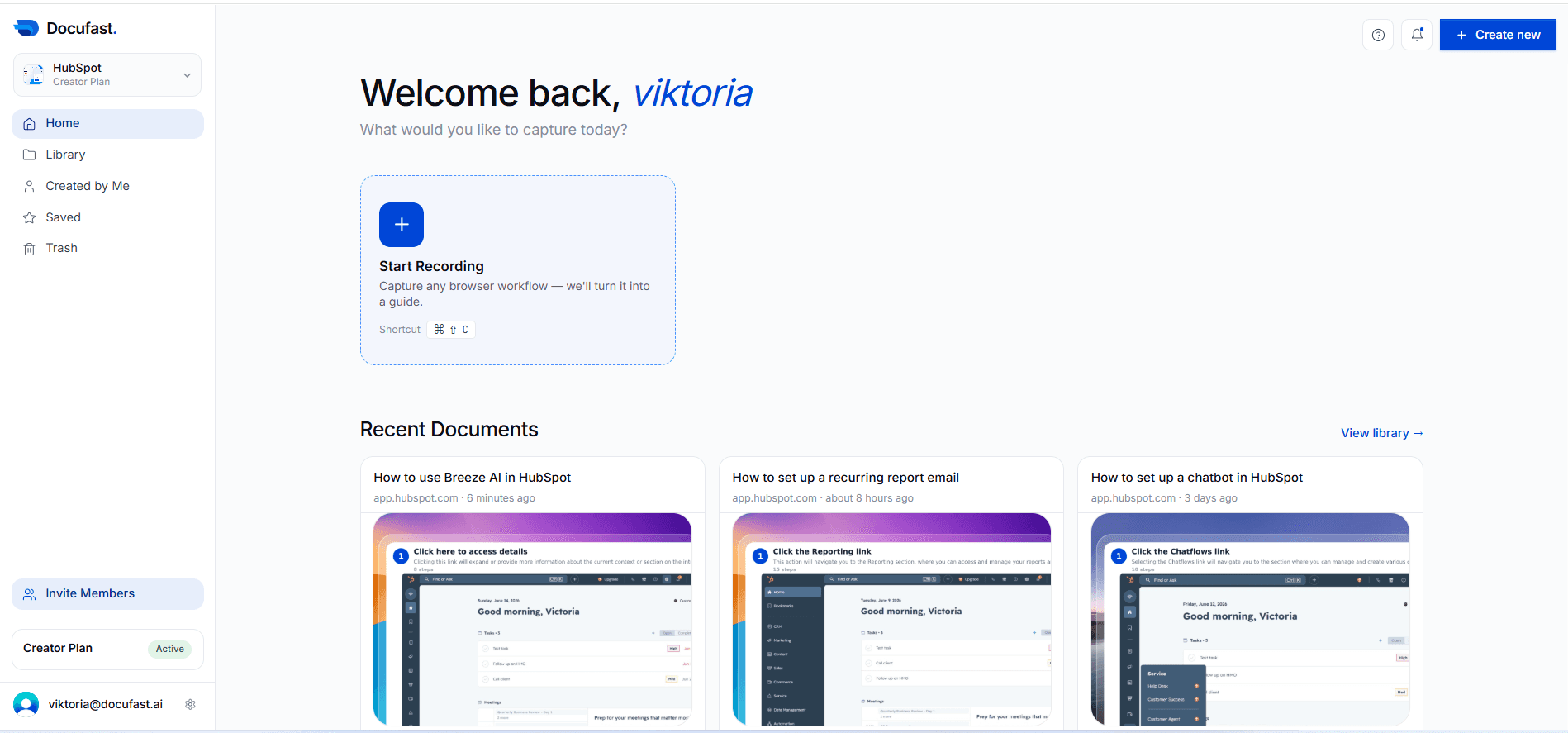
The Home page provides an overview of your recent activity. Here, you can:
View recently created or edited documents
Start recording workflows
Library
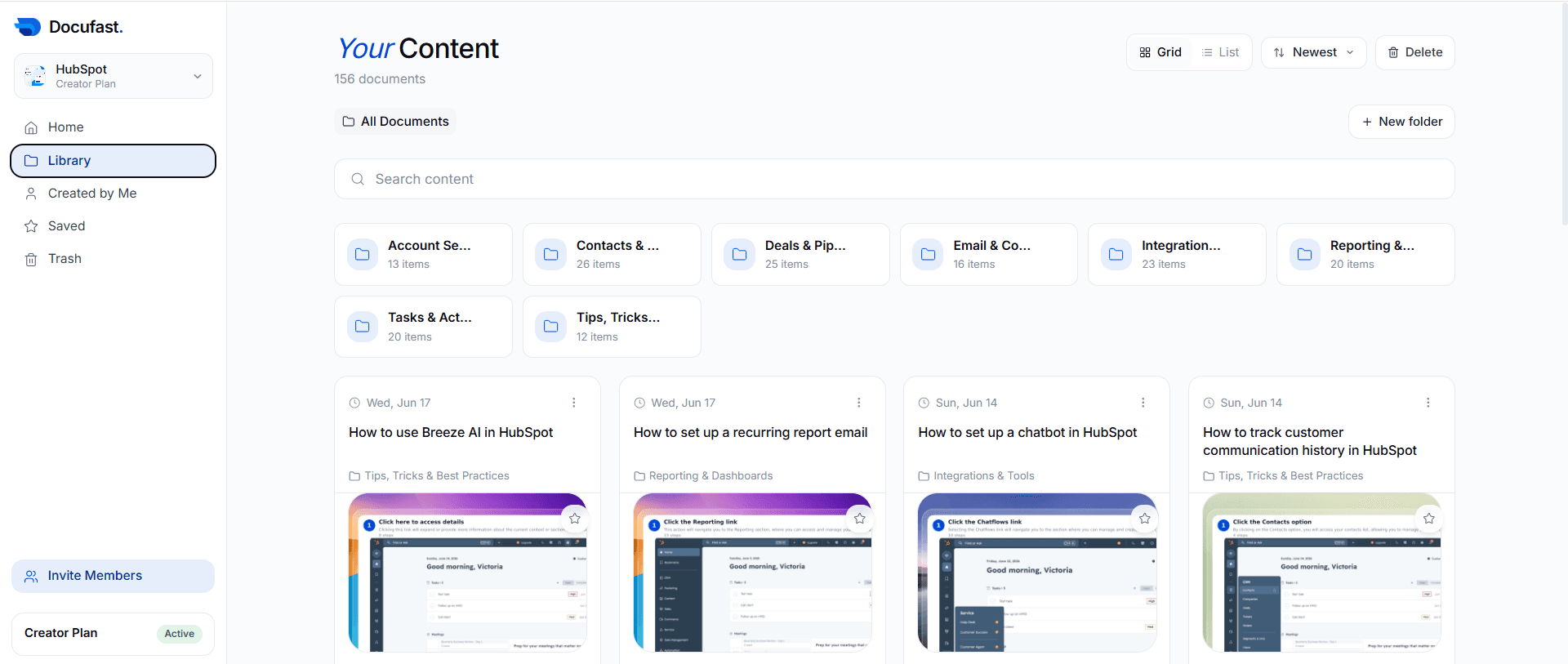
The Library is the central hub for all your DocuFast content. From here, you can organize, search, manage, and access your guides and documentation in one place.
Created by Me
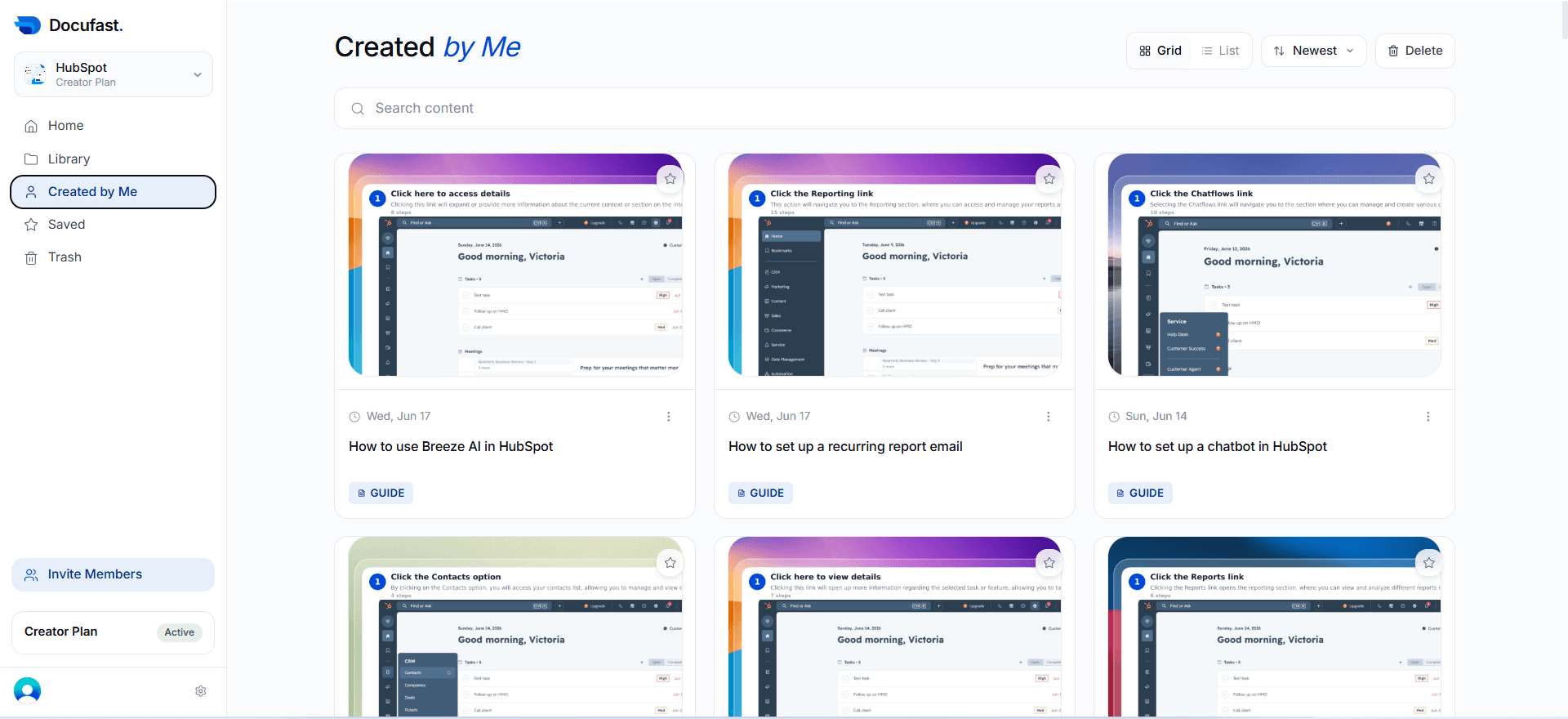
This section shows all documents you personally created. It helps you:
Quickly find your work
Manage documents you own
Edit or share your guides
Saved
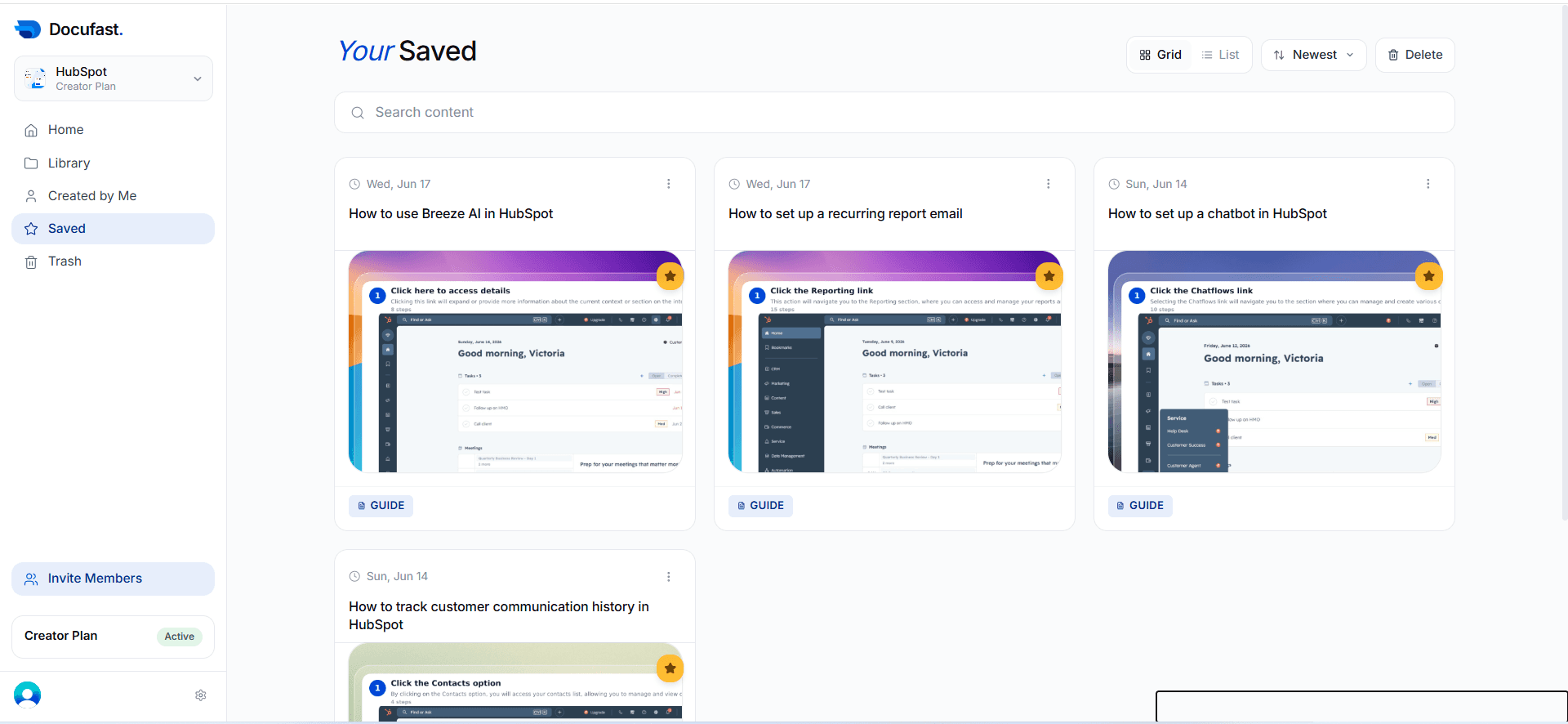
Saved documents are guides you’ve bookmarked/starred for quick access. Use this area to store frequently used documents.
Trash
Trash temporarily stores deleted documents. You can restore documents if needed or permanently delete items.
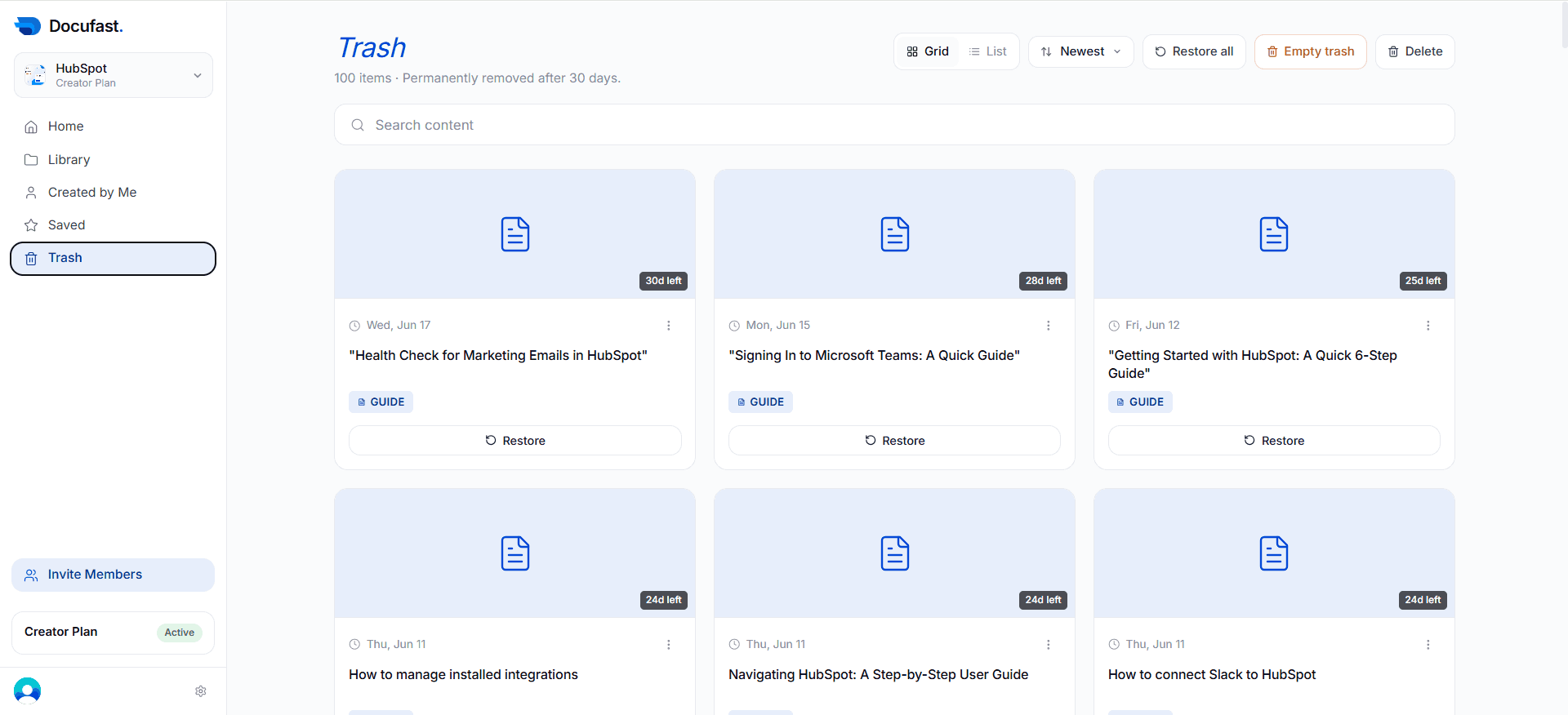
Invite Members
The Invite Members button allows you to add team members to your workspace so they can access and/or collaborate on your guides.
Account Menu
The Account Menu provides quick access to workspace configuration.
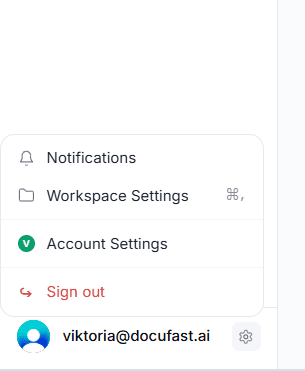
Notifications
View and manage system notifications related to updates, activity, and workspace events. This helps you stay informed about important changes within your account or team.
Workspace Settings
Access and manage your workspace configuration. This includes settings that affect the entire team such as branding, permissions, and overall workspace preferences.
Account Settings
Manage your personal profile and account-level preferences. This includes your name, email, password, and individual user settings tied to your login.
Sign Out
Safely log out of your account and end your current session. Use this when switching accounts or leaving the platform on a shared device
Notes & Tips
Use Workspaces to switch between workspaces
Save frequently used guides for quick access
