How to Edit Captured Steps
Written By:
Last Updated on May 21, 2026
Overview
After recording, you can refine your document by editing instructions, adding steps, or adjusting screenshots.
Steps
Step 1: Open the Document
Go to Library on the left-hand side of your dashboard and select the recorded workflow you want to edit.
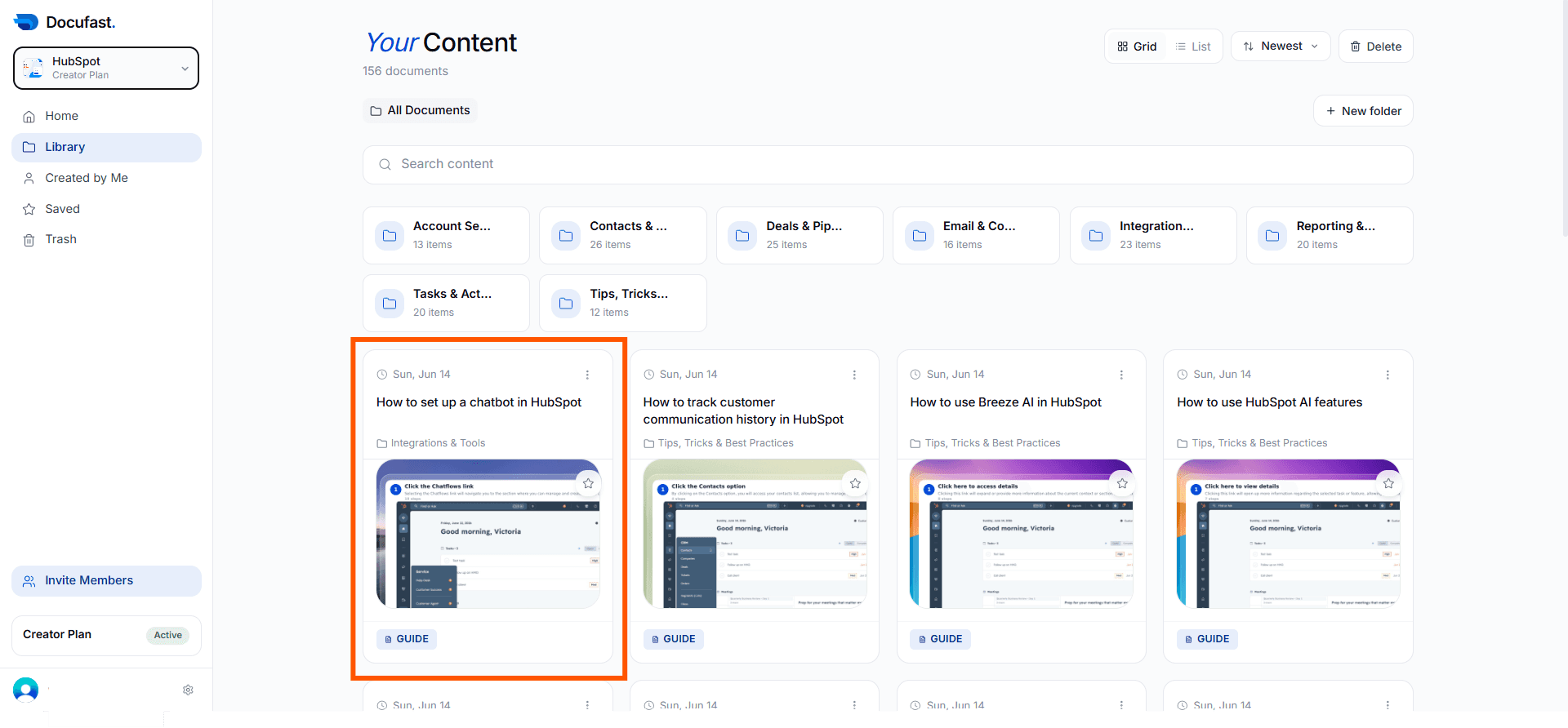
Step 2: Click the Edit Button
At the top of the document, select Edit to enter editing mode.
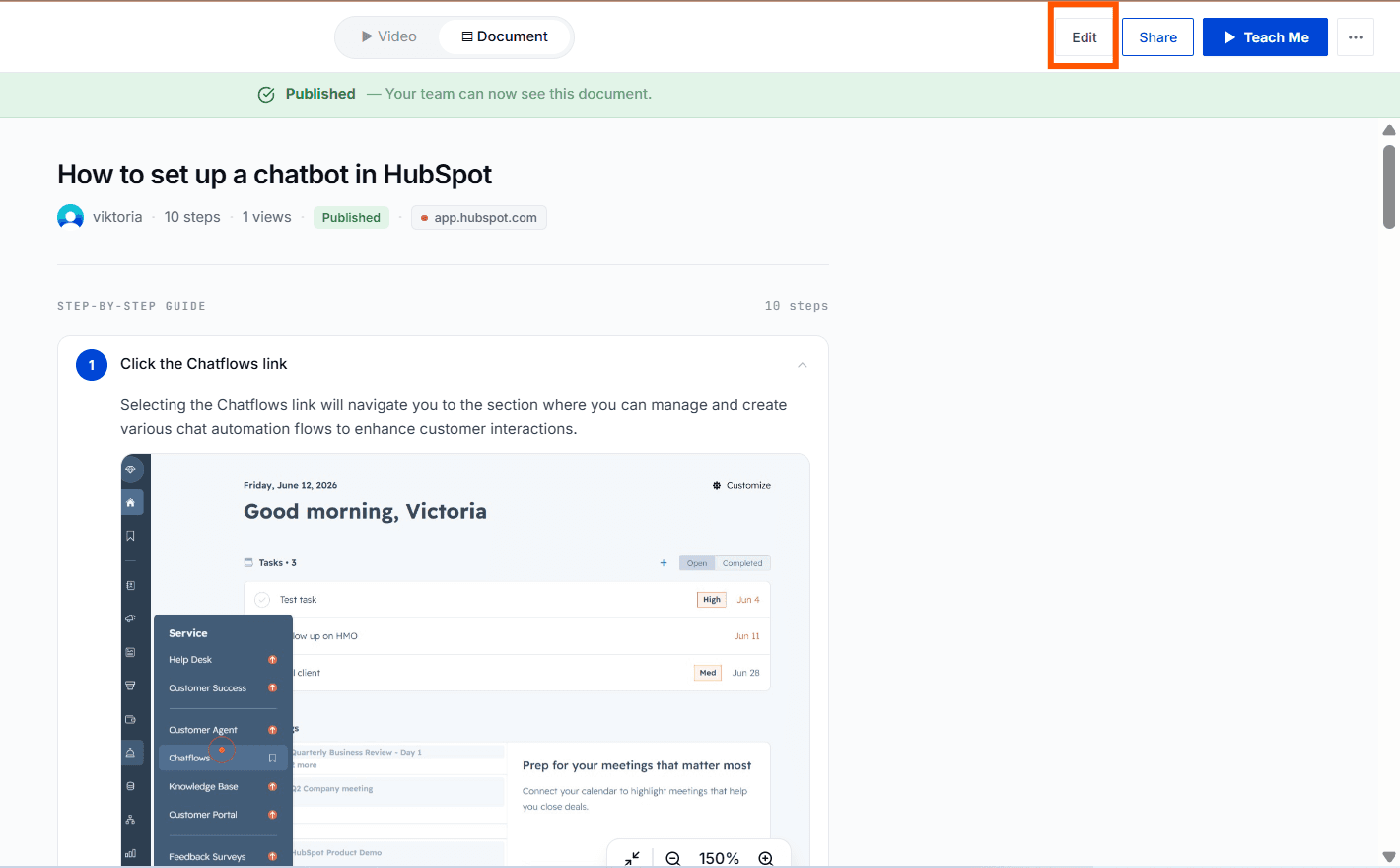
Step 3: Switch Tabs
Click the Document tab to switch from Video to Document editing.
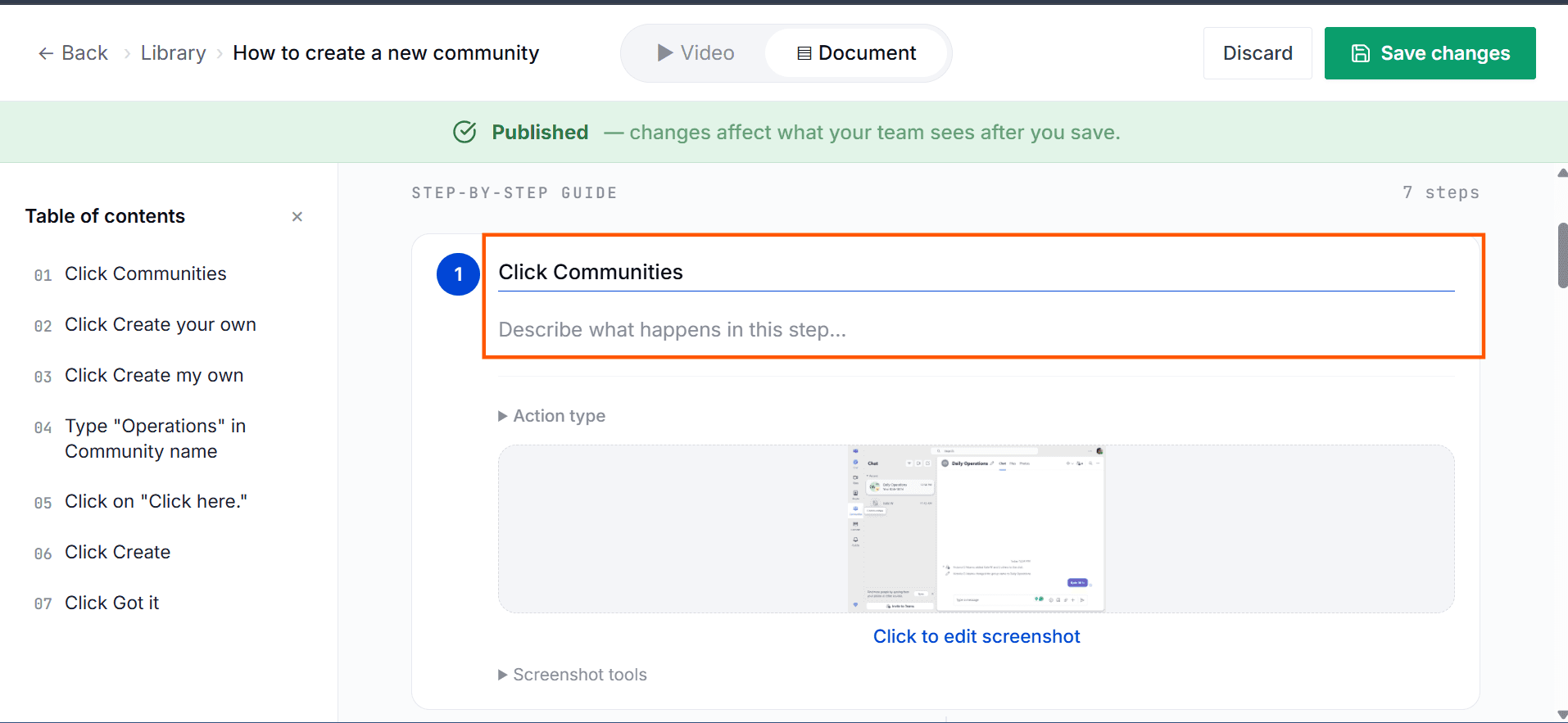
Step 4: Edit Step and Description
Click on the Step or Description box for the step you want to update, then make your changes.
Step 5: Delete a Step
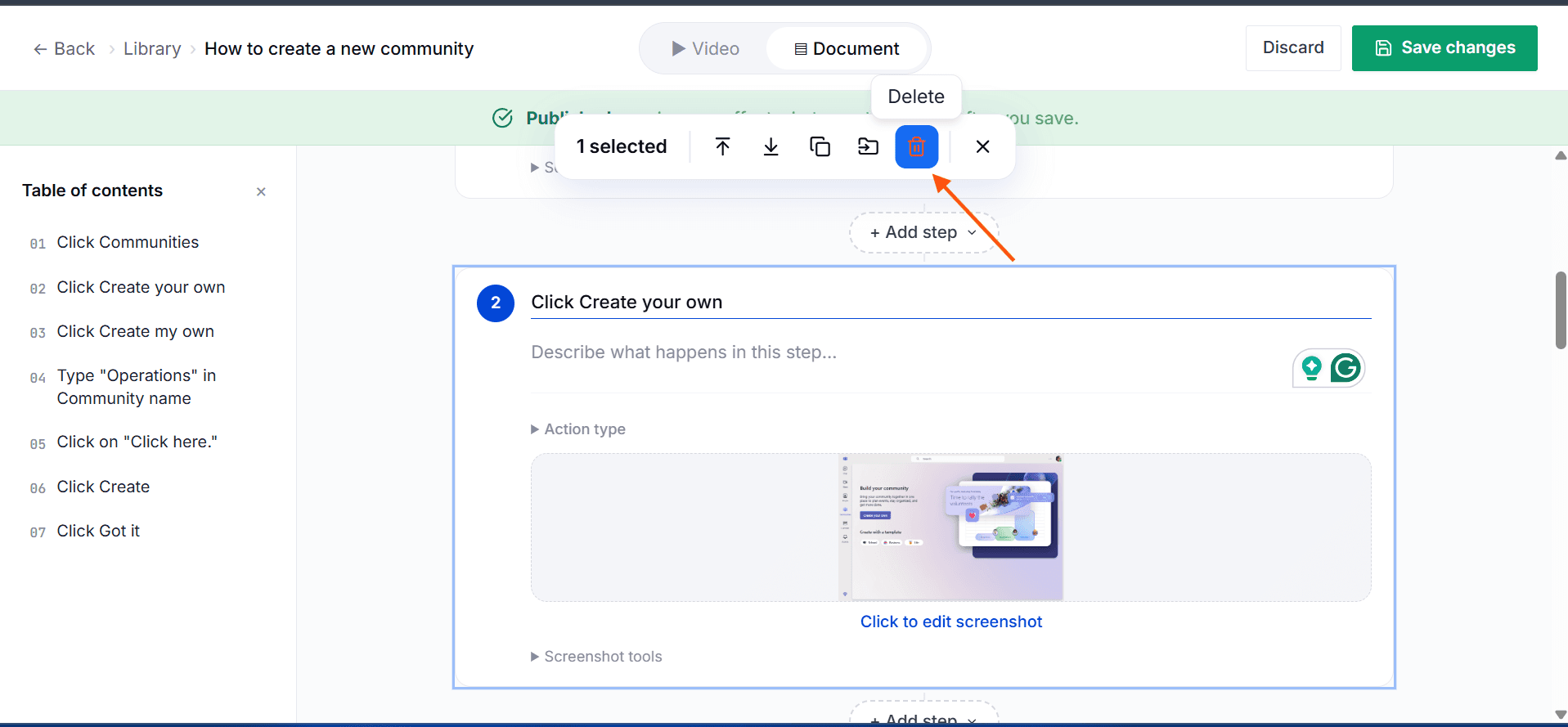
Click on the step you want to remove. Once selected, a set of icons will appear. Locate the delete icon and click it to remove the step.
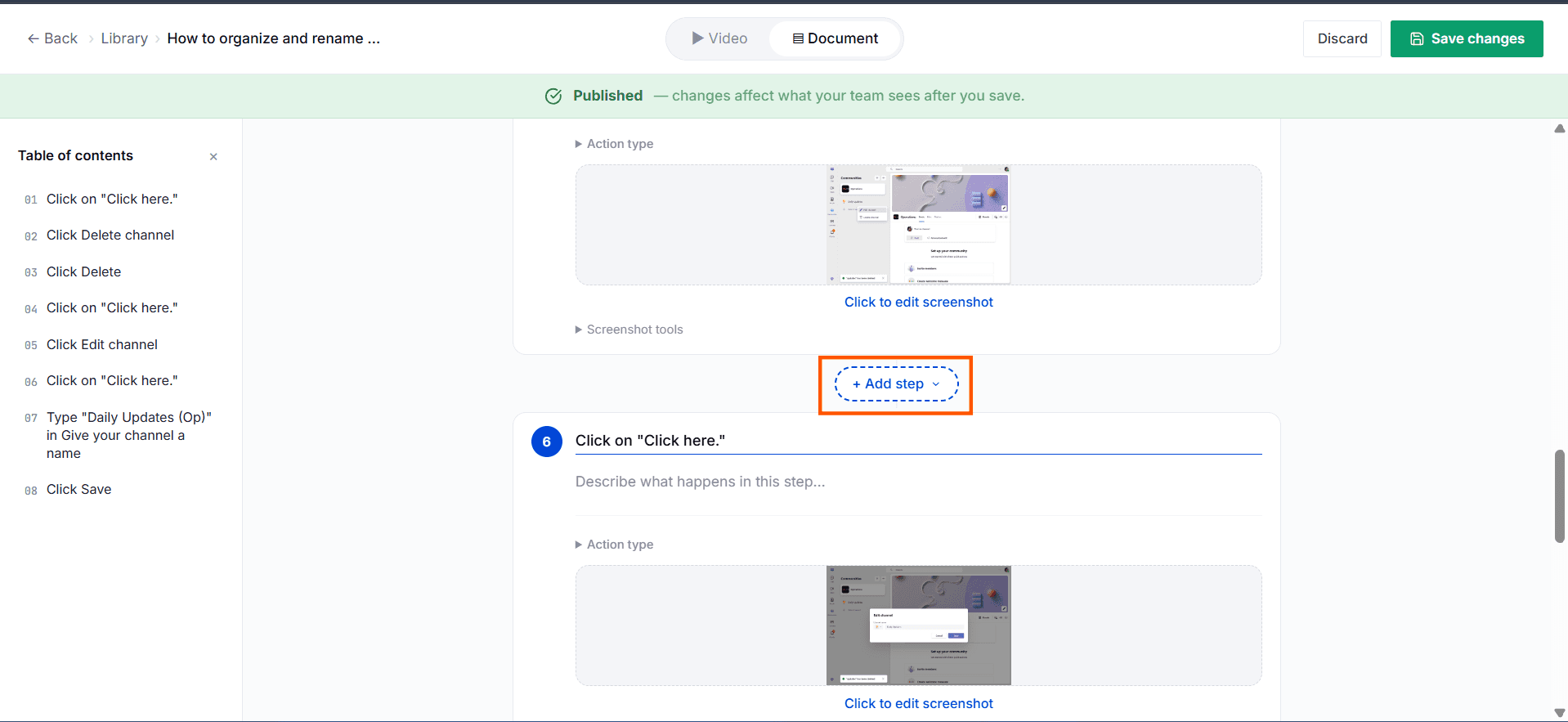
Step 6: Add a New Step
Click the Add Step button at the position where you want to insert a new step. Then enter a title and description, select an action type, and add a screenshot.
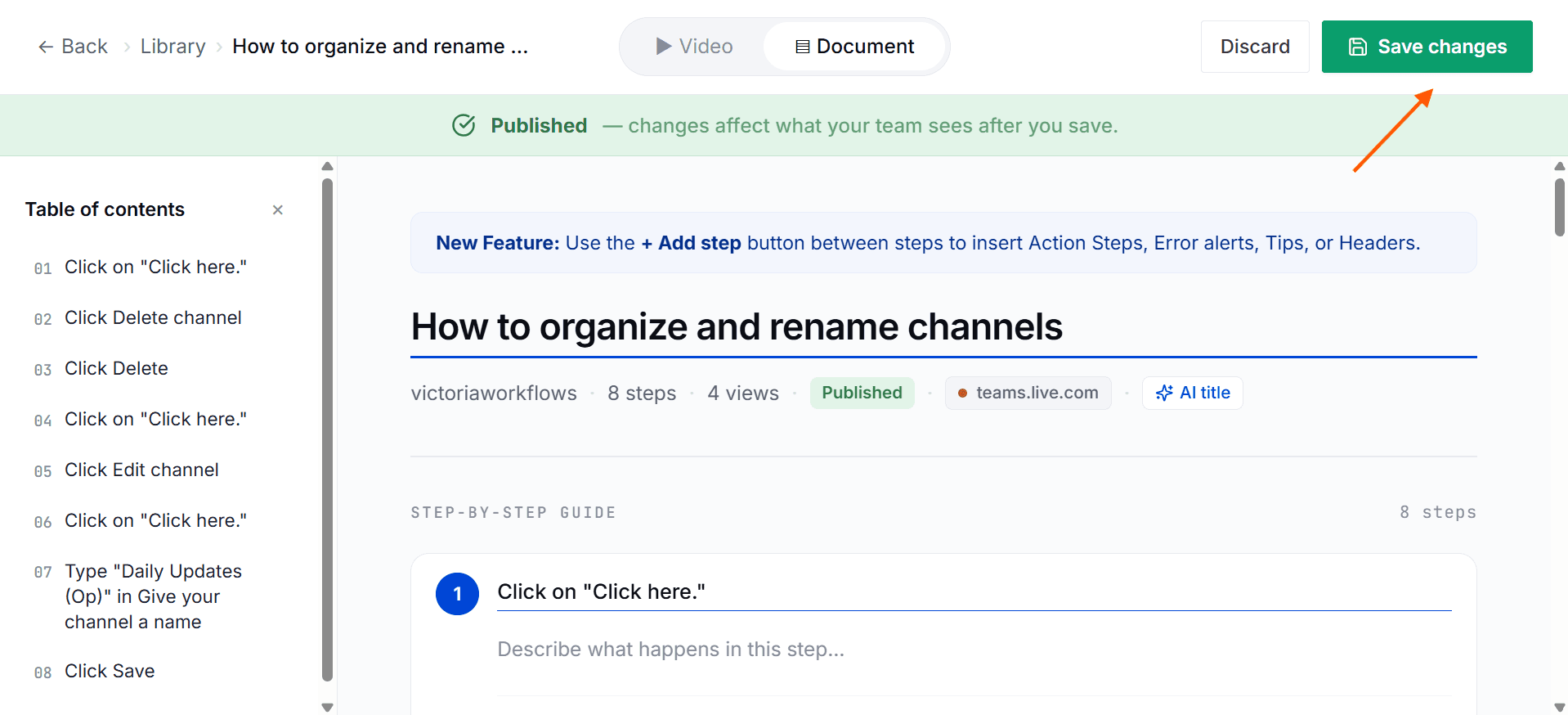
Step 6: Save Changes
Click Save Changes to apply modifications.
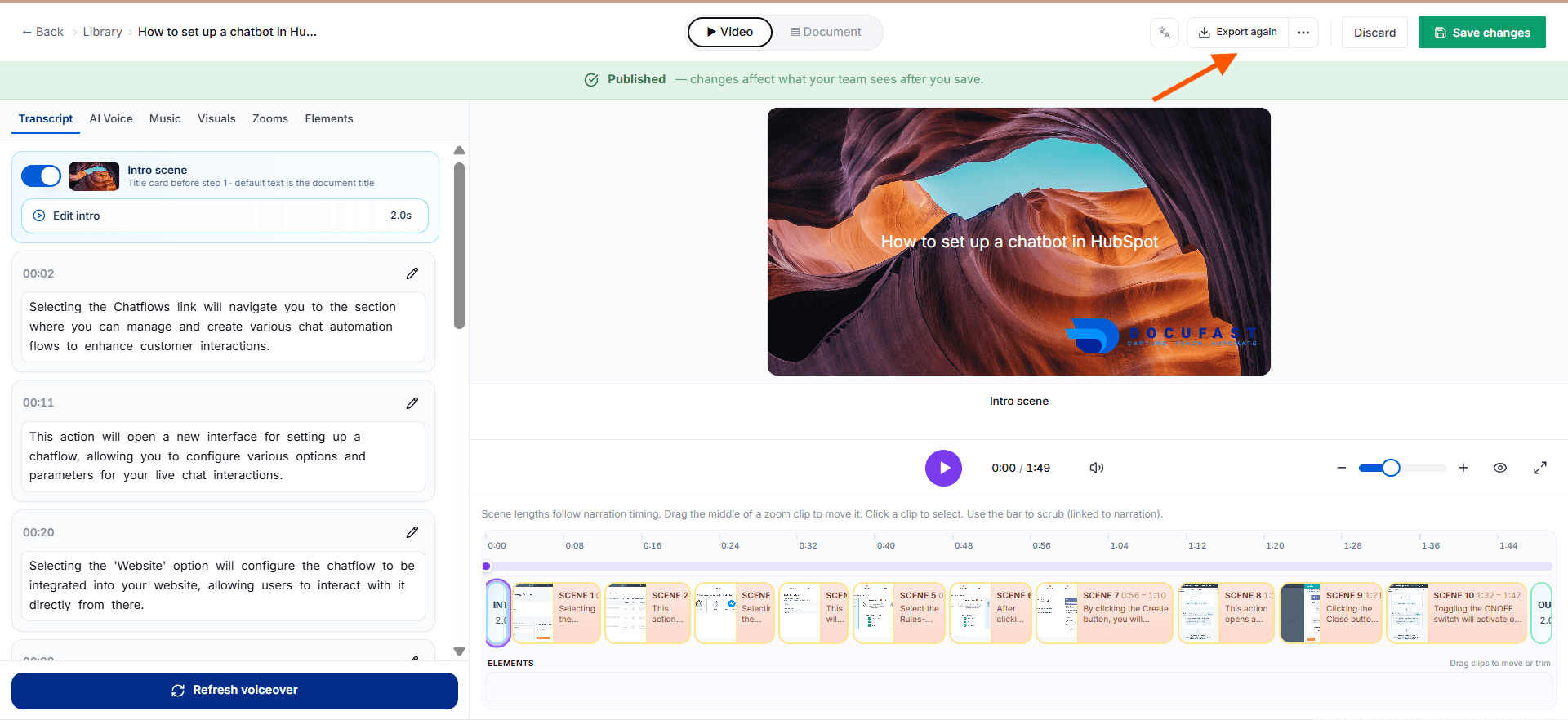
Step 7: Edit Video
Switch back to the Video tab, make any necessary edits, and export the video to reflect the latest document changes.
Tips for Best Results
Use concise step instructions for clarity.
Preview before saving to ensure logical flow.
