Using the Screenshot Editor (Crop, Blur, Arrow, Text, Zoom, etc.)
Written By:
Last Updated on May 21, 2026
Overview
DocuFast’s Screenshot Editor helps you customize screenshots directly within a document. You can zoom, crop, draw, add text, blur sensitive information, and highlight important areas to make each step more understandable.
Steps
Step 1: Open the Screenshot Editor
Ensure you are in Edit mode.
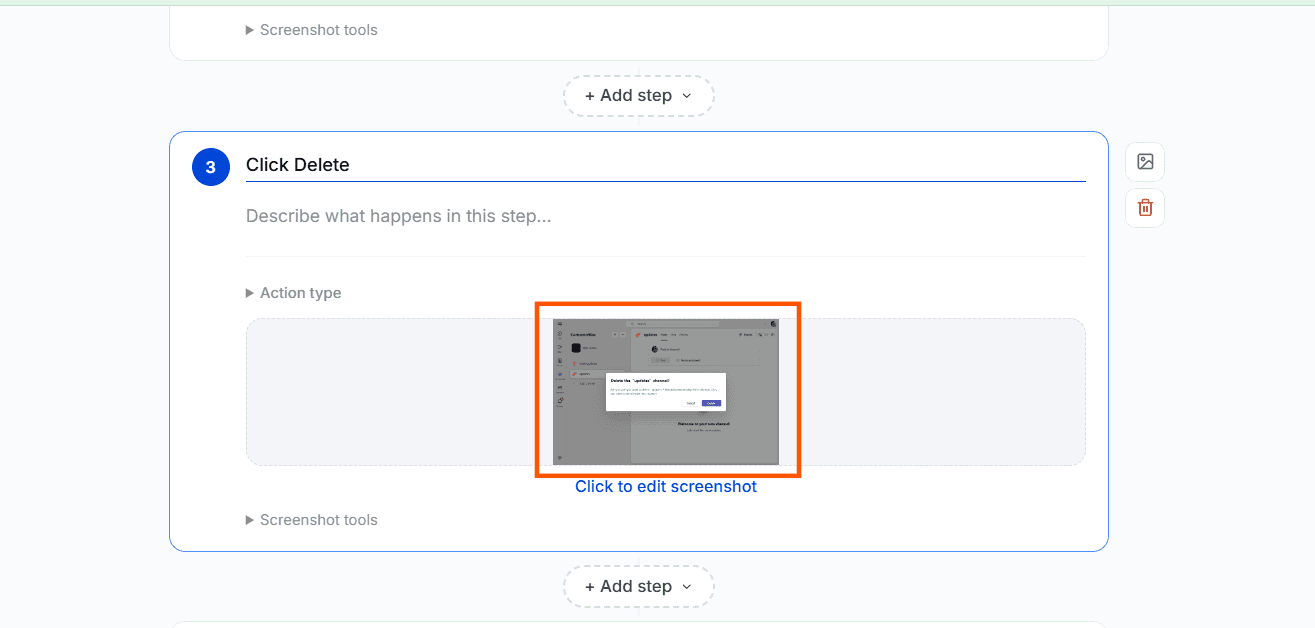
Click on the screenshot to edit it.
Step 2: Use Editing Tools
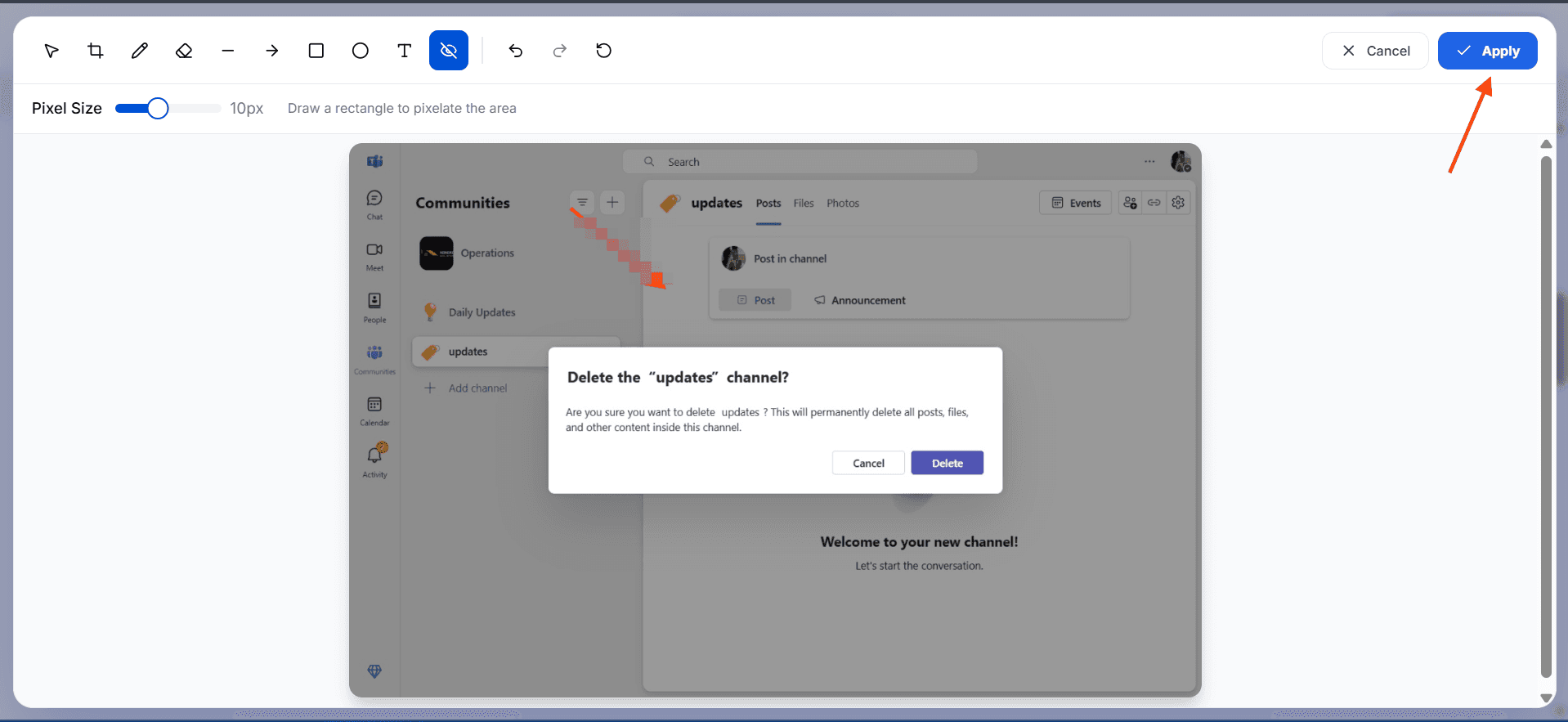
Crop – Remove unnecessary areas of the screenshot
Draw – Draw freely on the image. You can adjust the stroke width and change the color of your drawing
Eraser – Removes unwanted annotations from the screenshot
Line – Add straight lines
Arrow – Point to specific elements
Rectangle / Ellipse – Highlight areas or create shapes with adjustable fill, stroke, and width
Text – Add written notes to the screenshot
Redact – Blur sensitive information. Adjust the pixel size to control the level of blur

Step 3: Apply and Save
Click Apply after editing to confirm changes.
Tips for Best Results
Use blur to hide sensitive data.
Add arrows and text to clarify actions.
Keep annotations simple and consistent.
